Everything you need to rent things out, with or without staff.
A booking page, payments, an admin that shows what needs you, and locks when you want them. Here is every part, as you and your customers see it.
Prefer to talk first? Book a walkthrough
01The customer
The booking page.
Customers book on their own, whenever it suits them. You no longer answer the phone just to say what is free.
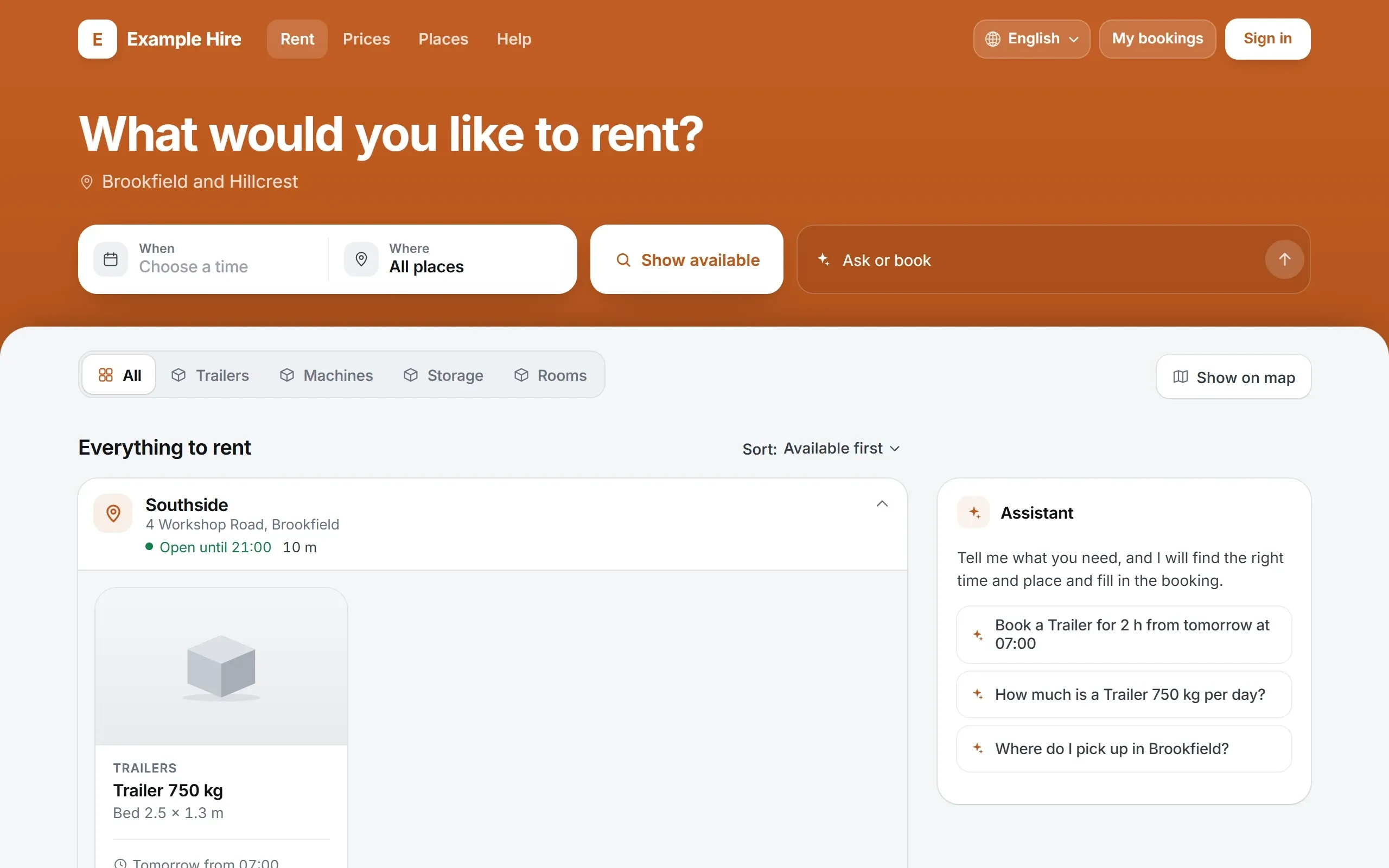
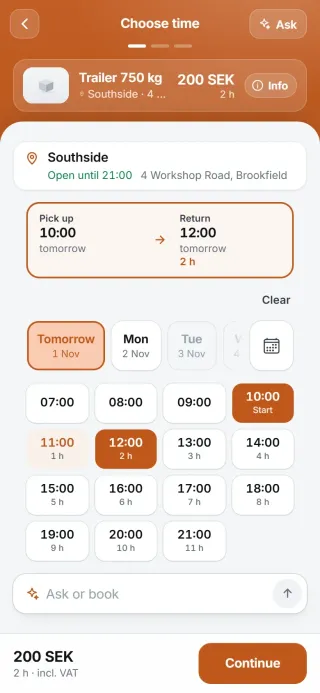
Customers see what is free and book on their own
The customer picks a product, a day and a time on their phone or computer. Anything already booked cannot be chosen, so you get no double bookings.
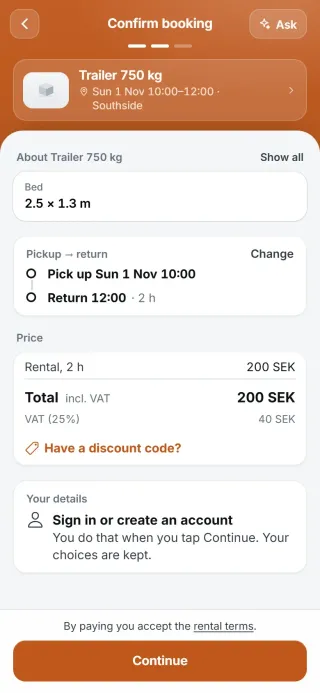
The price is on the button all the way through, so nobody has to ask what it costs.
Your logo, your colours and your website
The booking page gets your logo and your colour. You link to it from the website you already have, or add a button there.
Customers recognise you all the way, and you do not need a new website.
Add-ons and insurance in the same booking
The customer adds insurance, an extra bucket or anything else you rent out, and pays for it all at once.
Fees that always apply are added by themselves.
Customers extend or cancel on their own
If the customer needs the machine for another hour, they extend in the booking and pay the difference straight away, if the time is free. If they cancel, they are refunded without you having to do anything.
You decide whether customers may change their bookings.
Your name, your logo and your colours.
The booking page shows your business, not ours. You add your name and your logo on every plan, and on Unattended and Autopilot the page gets your own colours. At the bottom of the page there is a small link: Powered by Qonnecta.
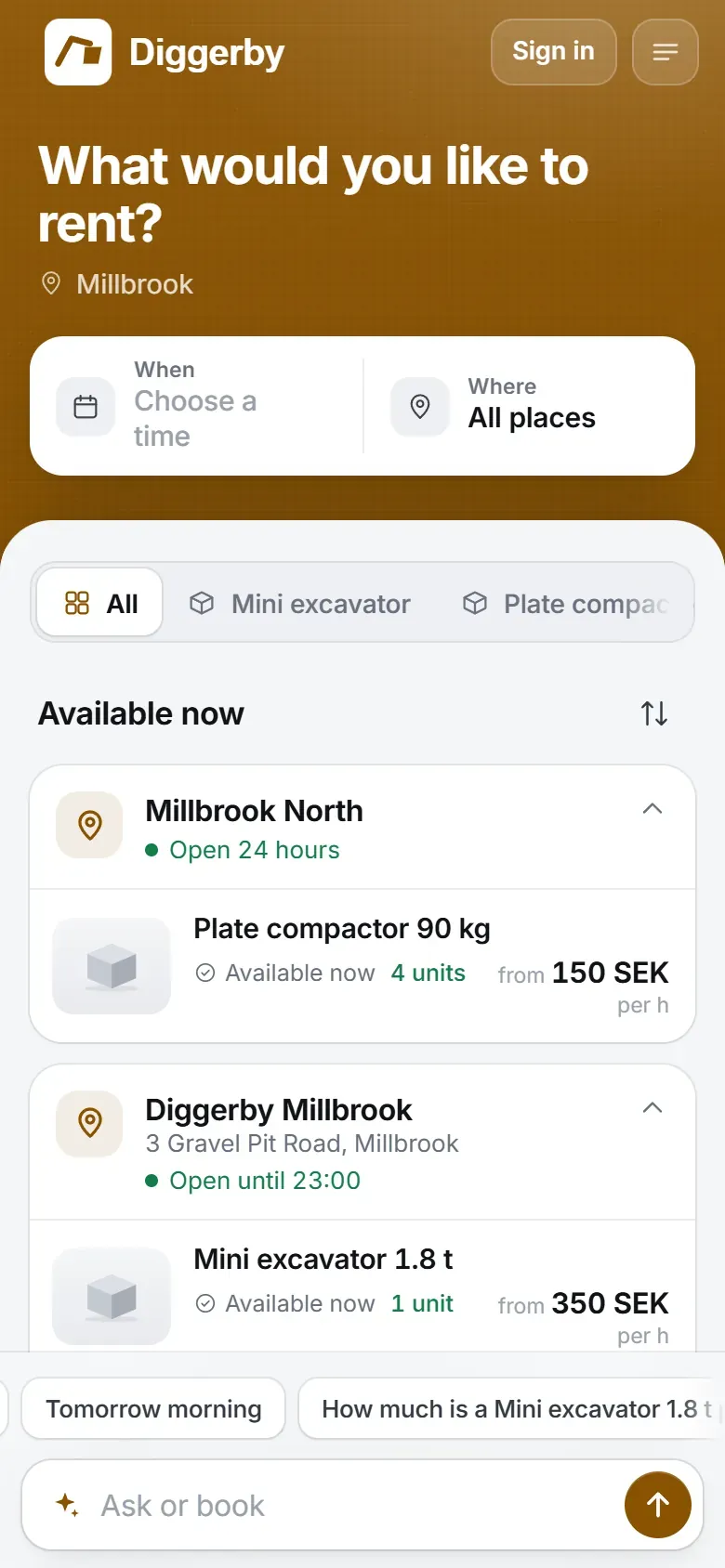
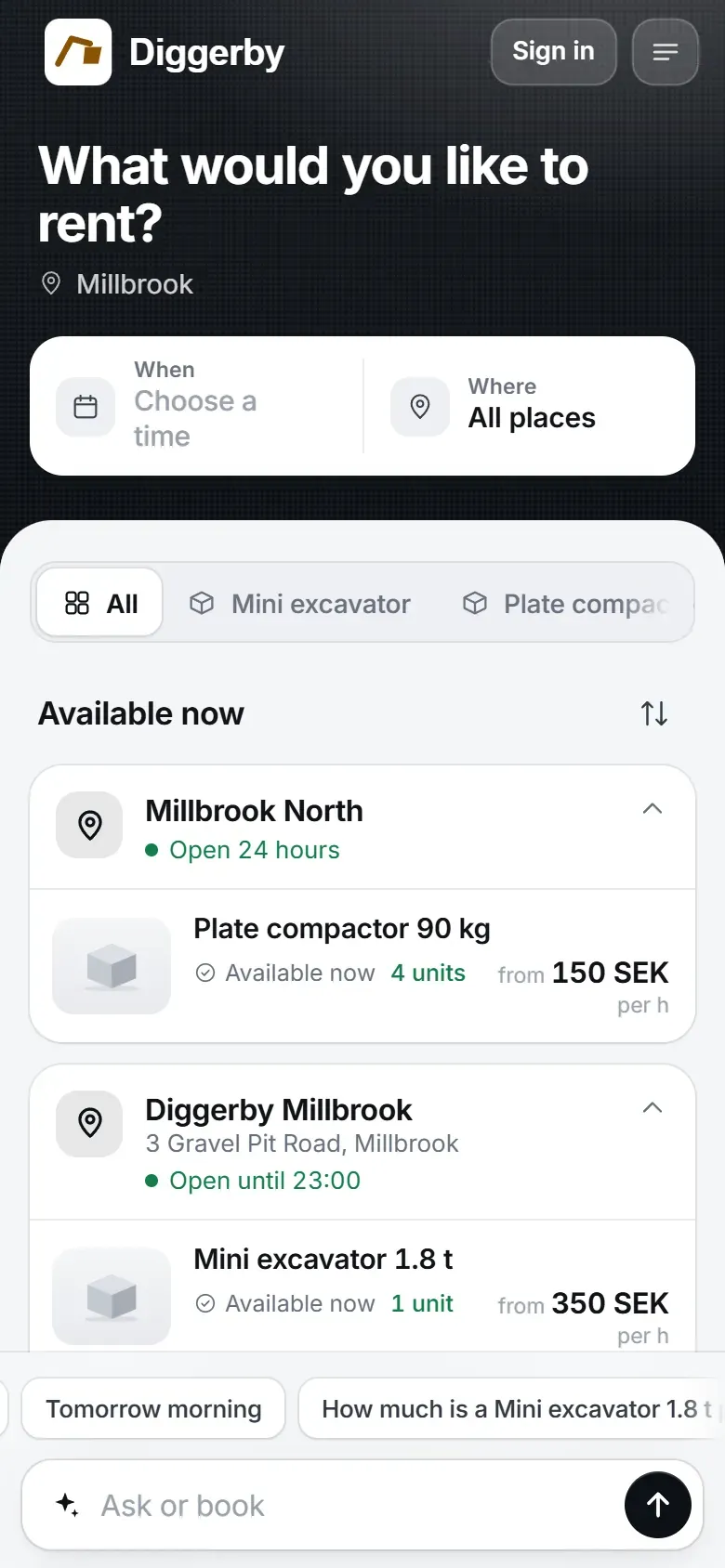
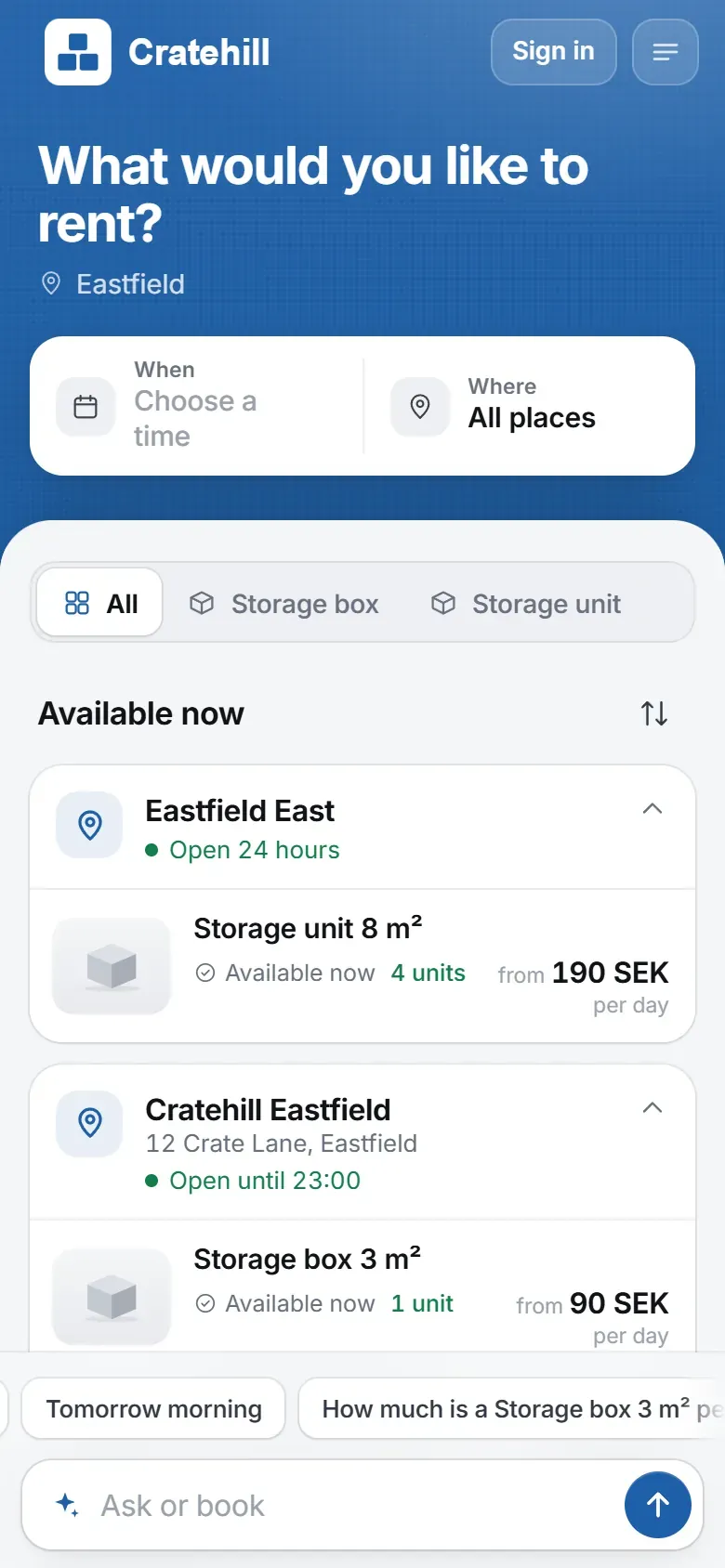
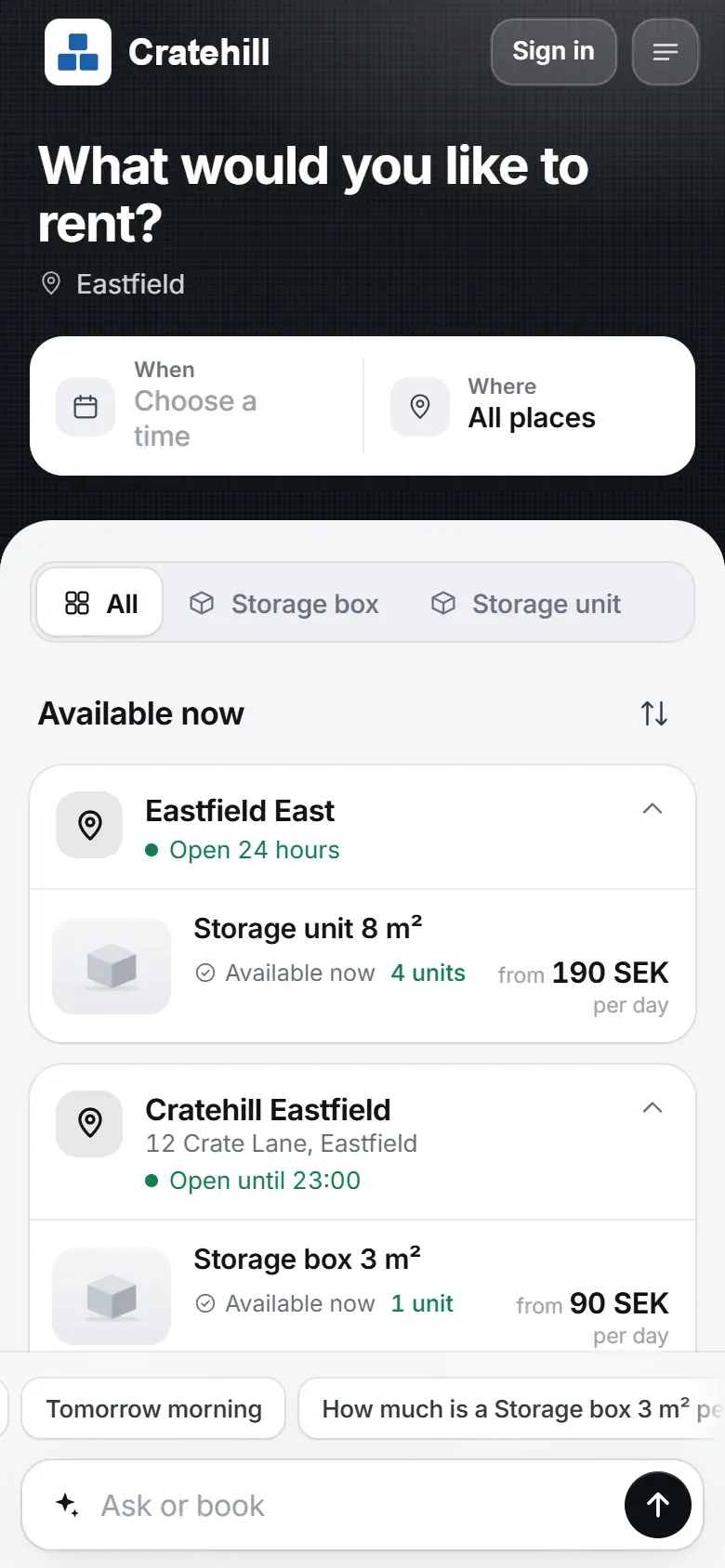
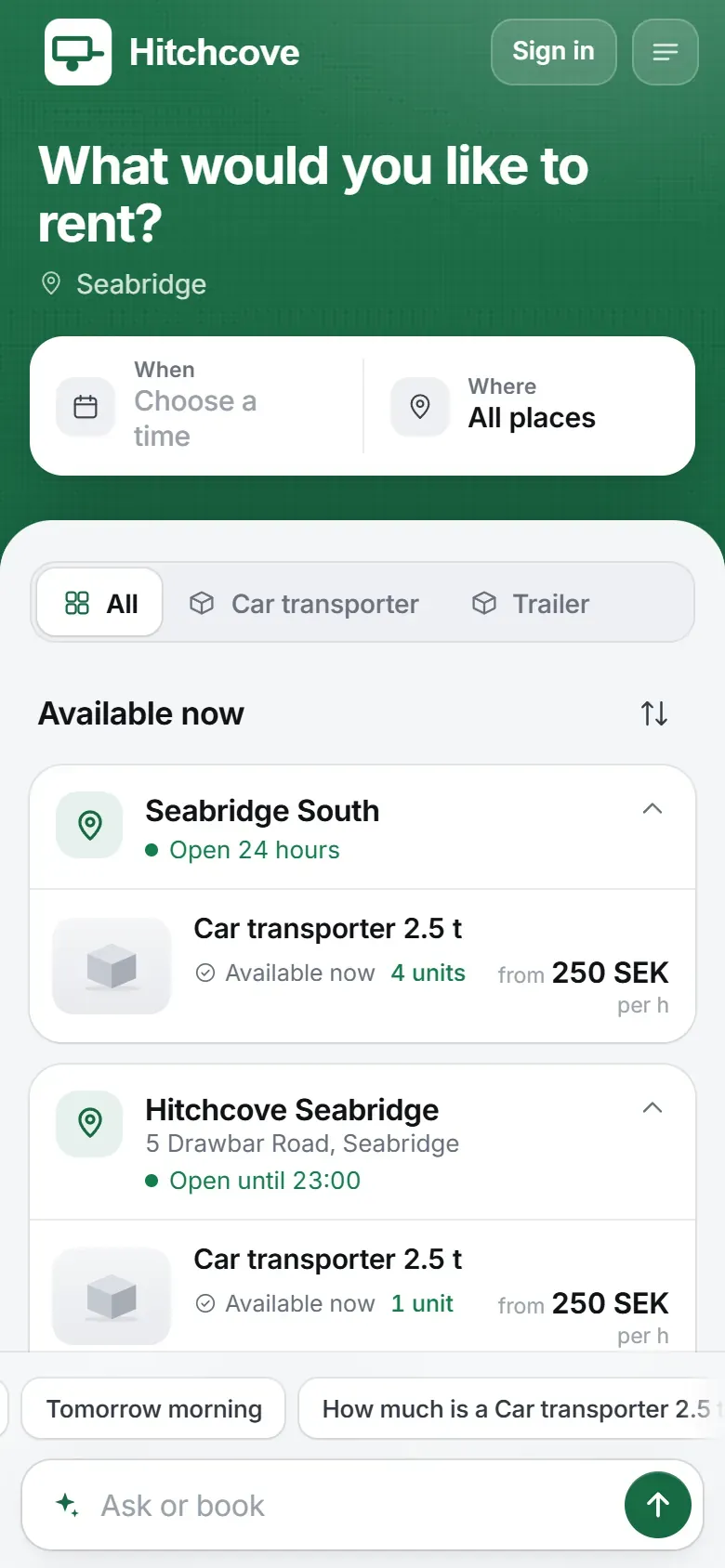
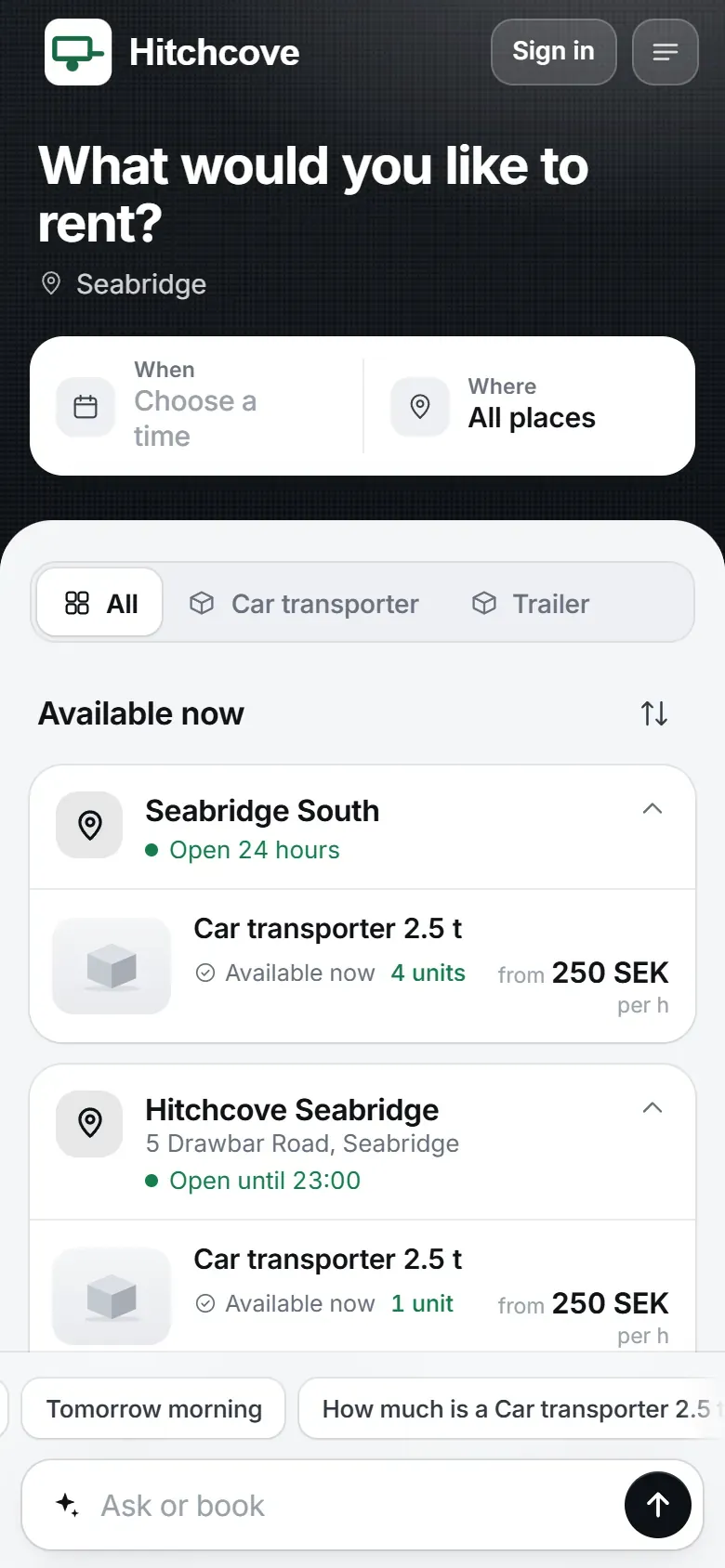
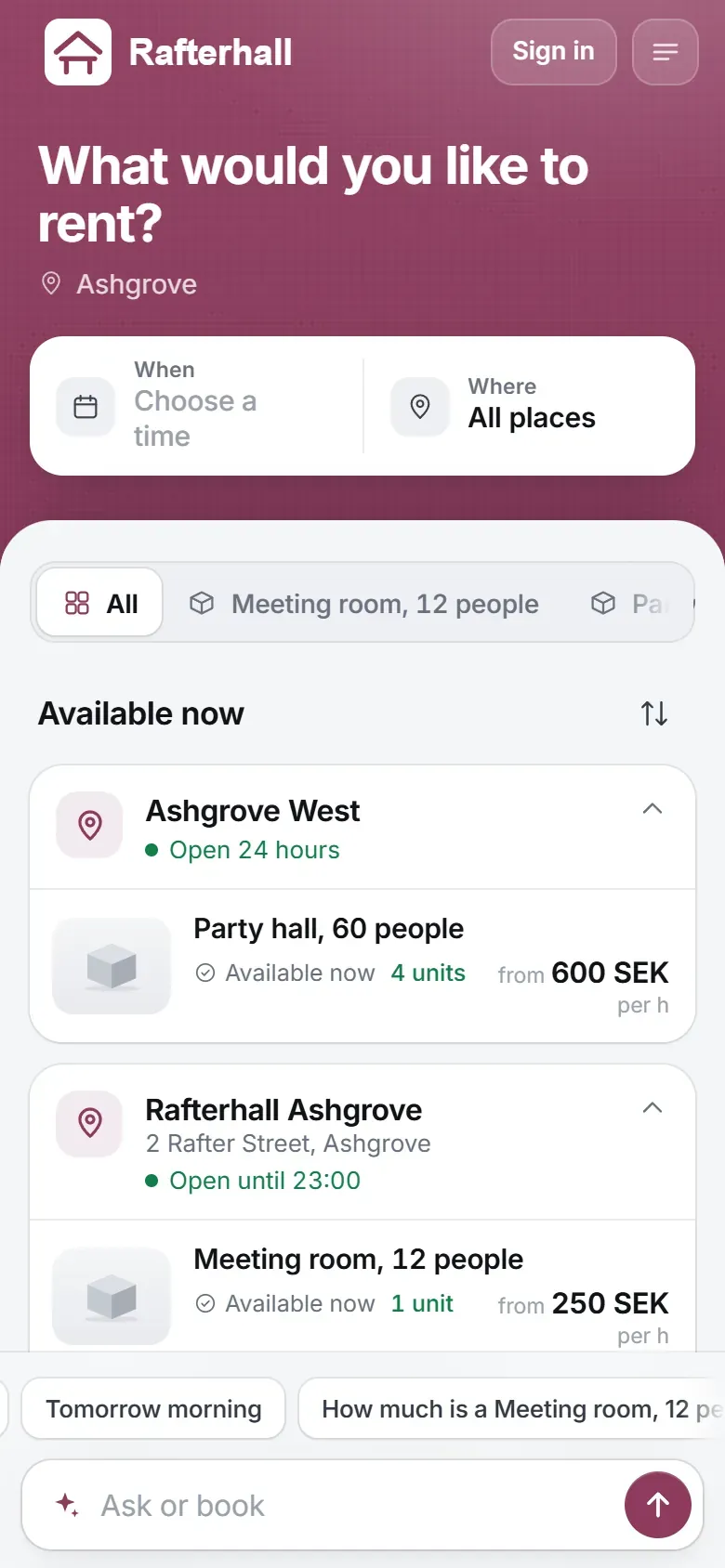
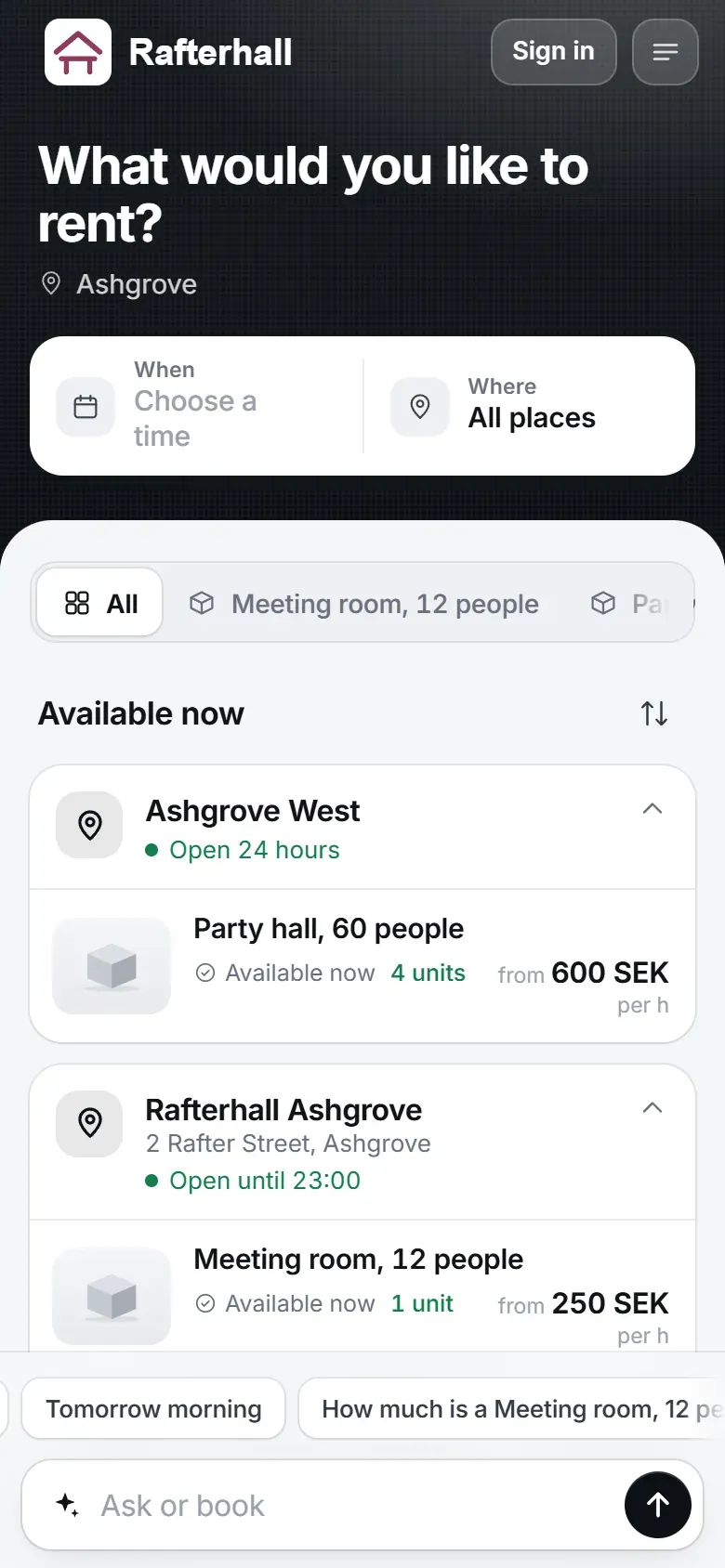
Unattended and Autopilot: your name, your logo and your own colours.
02Payment
Payment and contracts.
Customers pay when they book, so you never chase payments afterwards.
- Paid before the customer arrivesThe customer pays right in the booking: by card, Apple Pay or Google Pay through Stripe, or with Swish in Sweden. The money goes to your own account, and the customer gets the receipt by e-mail. If you turn it on, customers can also pay with Klarna, and business customers can pay by invoice, which you send from your own system.
- Contracts and monthly rent for storageFor storage units and other rentals on contract, you can require the customer to sign the contract digitally before the first payment. The rent is then charged to the customer's card every month, until further notice or for a fixed term. You see when the next payment is due, and whether anyone is late.
03Pick-up
Locks and pick-up.
For when you want customers to collect on their own. The customer gets a code to the lock, you do not need to be there and there are no keys to hand out.
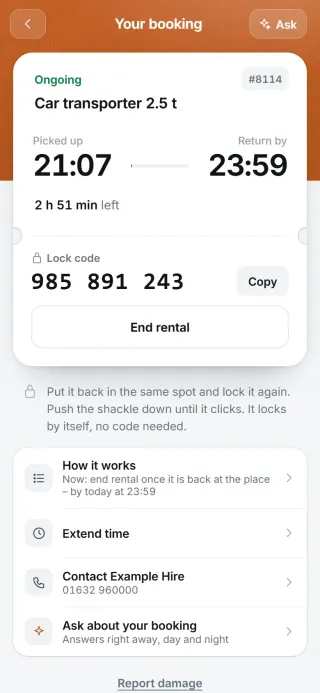
The code arrives when the rental starts
On site, the customer taps Start booking, checks the condition and gets the code to the lock.
The code can only be fetched while the booking is under way, and each code is valid for a limited time. There is no code to pass on in advance.
Condition photos before and after
If the customer collects on their own, they take photos at pick-up and at return. If something has happened, it ends up under Deviations, with the photos and the booking.
You decide what should be checked for each product.
How the check worksThe locks in your admin
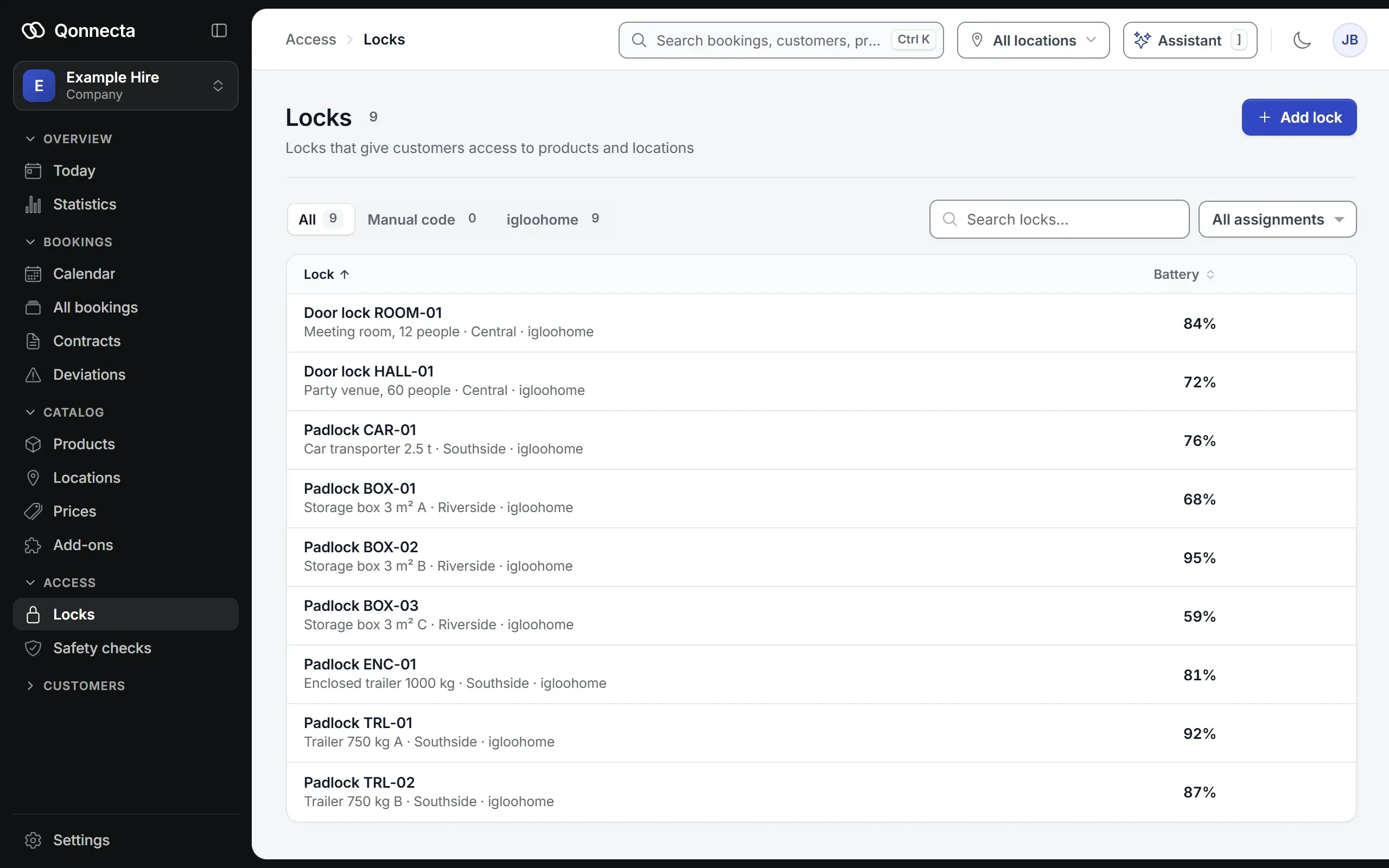
You see every lock, which product it sits on and how much battery it has left. The log shows when a code was created and for which booking.
The locks need no internet connection, so they work even where mobile coverage is poor. Qonnecta supports igloohome locks, and we're happy to find a solution for other locks.
A code of your own when you need one
If you want to check on a machine yourself, you create a one-time code on your phone, straight from the booking.
Every time a code is shown or created, it is saved in the booking's activity.
04The check
Checks at pick-up and return.
When the customer collects on their own, they go through your condition check, with photos where you want them, and the same check when they return. You see the answers and the photos on the booking, with the time.
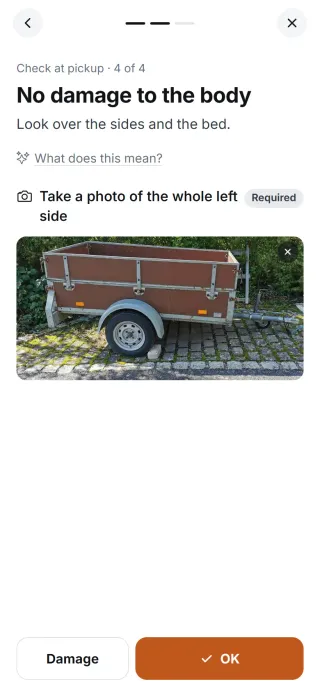
The check comes before the code
On site, the customer taps Start rental and goes through your points one at a time: OK or Damage. Where you require a photo, they cannot go on without one.
Only when the check is saved does the rental start and the lock code appear.
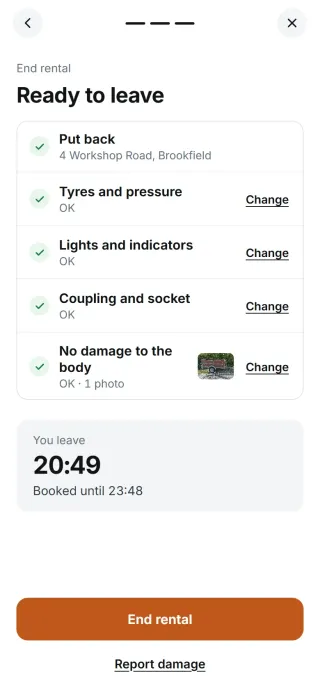
The same check when they leave
The customer locks with the code and goes through the same points again, with new photos where you want them. Then they tap End rental.
The rental cannot be ended without the check.
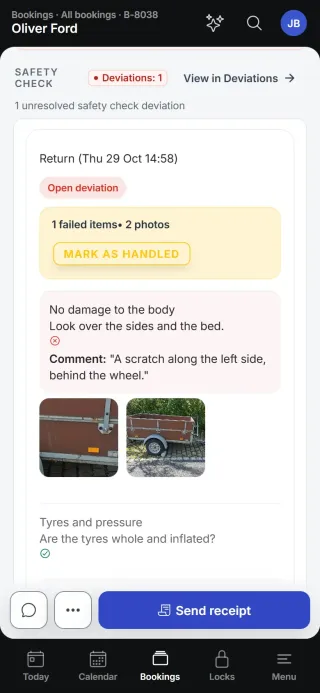
Answers and photos on the booking
The pick-up check and the return check are saved on the booking, each with the time, the answers, the customer's comments and the photos.
If the customer answers Damage, it becomes a deviation straight away. It shows under Deviations and in To-do, so you see it before the next customer collects.
Damage with a photo and a note
If something looks wrong, the customer takes a photo or writes briefly what is wrong, right in the check. The customer can also report damage at any time during the rental, from their booking.
You decide what is checked
You write the points yourself, such as tyres, lights, the coupling or cleaning, and choose for each point whether the customer takes a photo: always, only for damage or not at all, and whether the photo is required.
A check can apply to all products, a product type, a single product or a location.
When nobody is on site
Without staff, the check is what shows the condition. The photos from pick-up and return belong to the booking and the customer, so you can see whether damage was there when the customer collected or happened during the rental.
That makes it easier to sort out damage with the customer.
05Admin
Your day in admin.
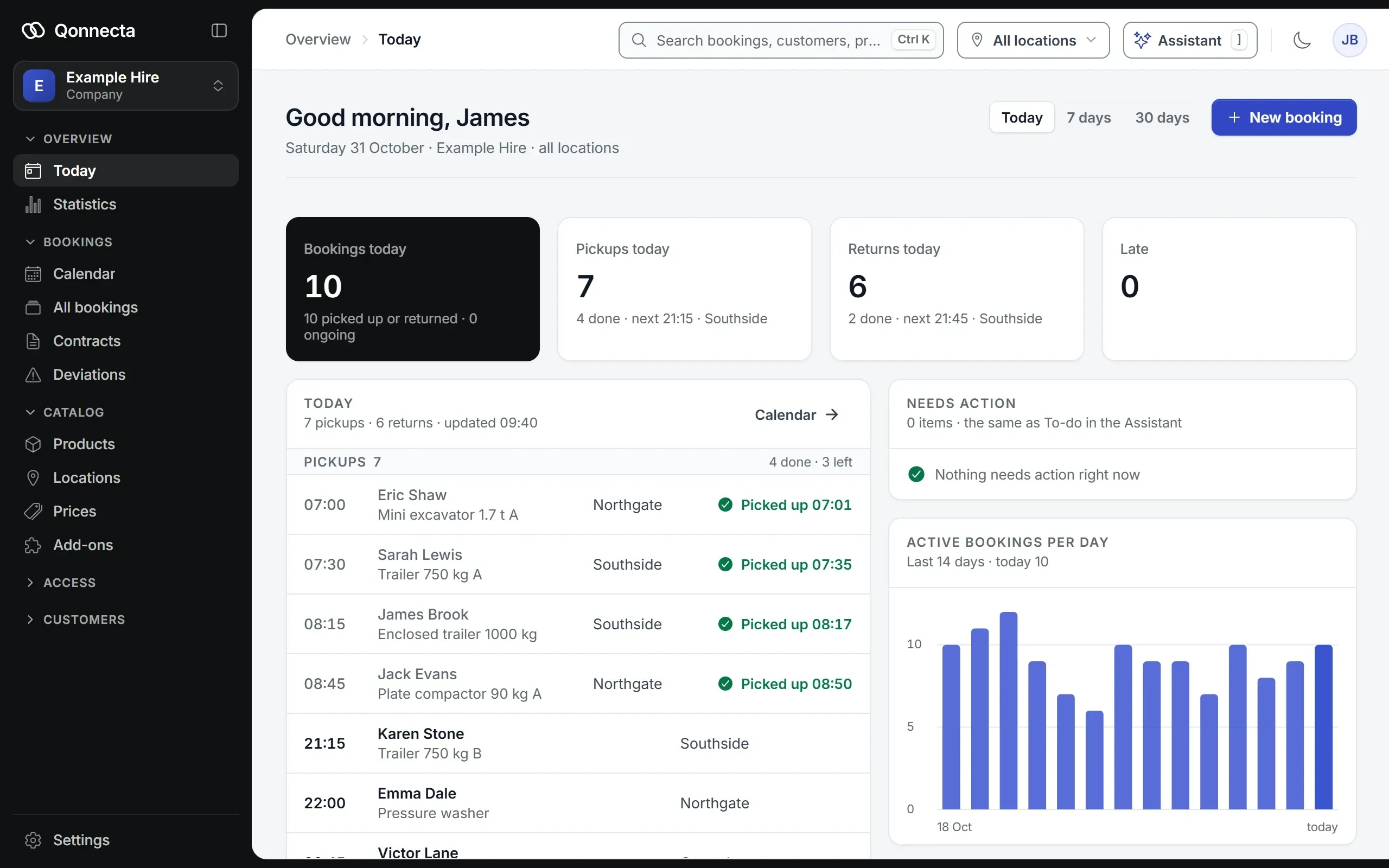
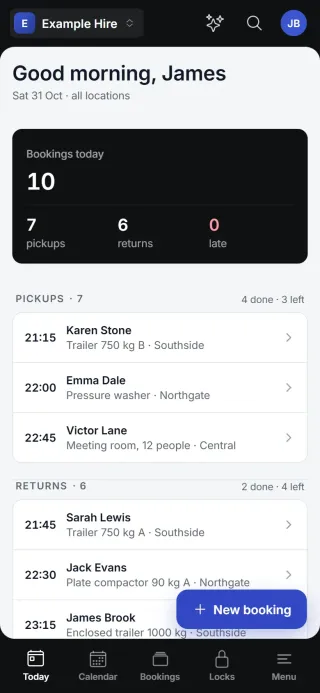
Everything about your bookings in one place, on your computer and your phone. What needs you comes first.
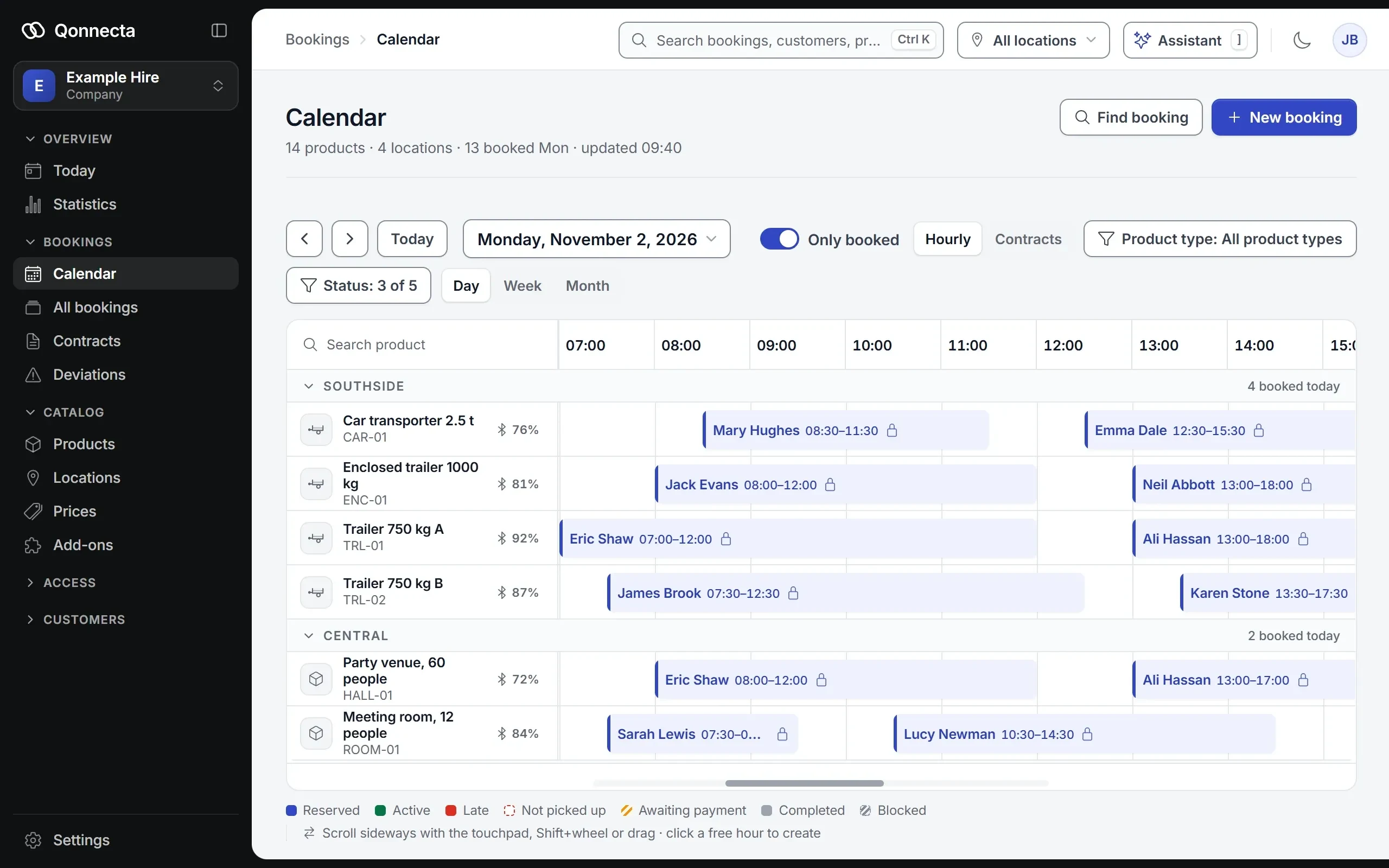
The whole day in one calendar
Every booking per product and location, with a colour for each status: booked, under way, late or awaiting payment.
Click a booking to see the customer, the payment and the code.
Hand over in person
The booking tells the customer that the handover is staffed, with your address, opening hours and phone number. You press Start booking when you hand over and End booking when it comes back, so the calendar shows what is out.
Book for the customer who calls
Choose the product and the time, look up the customer and see the price before you save. If the customer is new, you add them in the same step.
Late returns go to the top
Every booking shows where it is, from booked to returned. If a return is late, it is at the top, and you can send the customer a reminder straight from there.
Reminders that go out by themselves
Confirmations, receipts and reminders before pick-up and return are sent automatically by e-mail, in your own words.
Text message reminders and messages to your customers can be switched on. The code to the lock always shows in the booking.
You set them up once, and can send a test to yourself first.
Your own prices for weekends and seasons
A price per hour or per day, a different price at weekends and prices that only apply for a set period. The customer sees the right price as soon as they choose a time.
Your rules for each product
Decide how far ahead people must book, how long the buffer between two rentals should be and what a late return costs.
If a customer never collects, the booking can be cancelled automatically, so the product is free again.
06AI
The AI agent and the assistant.
The AI agent answers your customers, and the assistant handles almost everything in admin for you. The AI assistant is included in every plan, and in Autopilot it does more on its own.
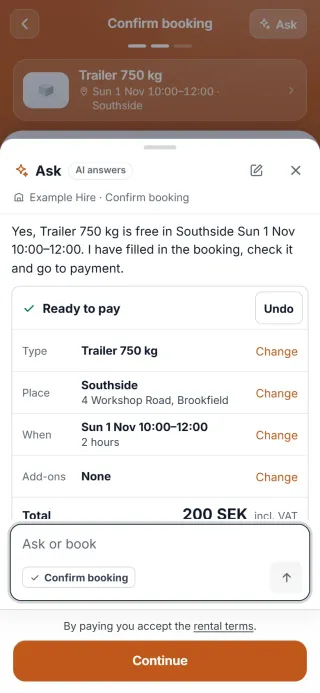
Answers customers in the chat, around the clock
The customer asks in the chat on the booking page, and the AI agent answers from your products, prices and free times. If the customer wants to book, it fills in the booking, and the customer pays as usual.
How the AI agent works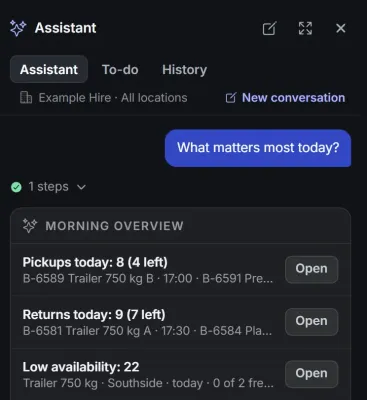
Handles almost everything in admin for you
Write what needs doing, as you would to a colleague: bookings, the calendar, customers, products, prices, add-ons, locations, locks, statistics or settings. The assistant shows exactly what it intends to change and what message the customer will get.
Nothing happens until you have approved it. On Autopilot it can act right away by your rules, without waiting for your approval.
07Overview
Locations and statistics.
One account for all your locations, and figures that show how things are going.
All locations in one account
Each location has its own products and opening hours, and customers can only book when the location is open. Switch location at the top of admin, or see them all at once.
The people who help you get their own login.
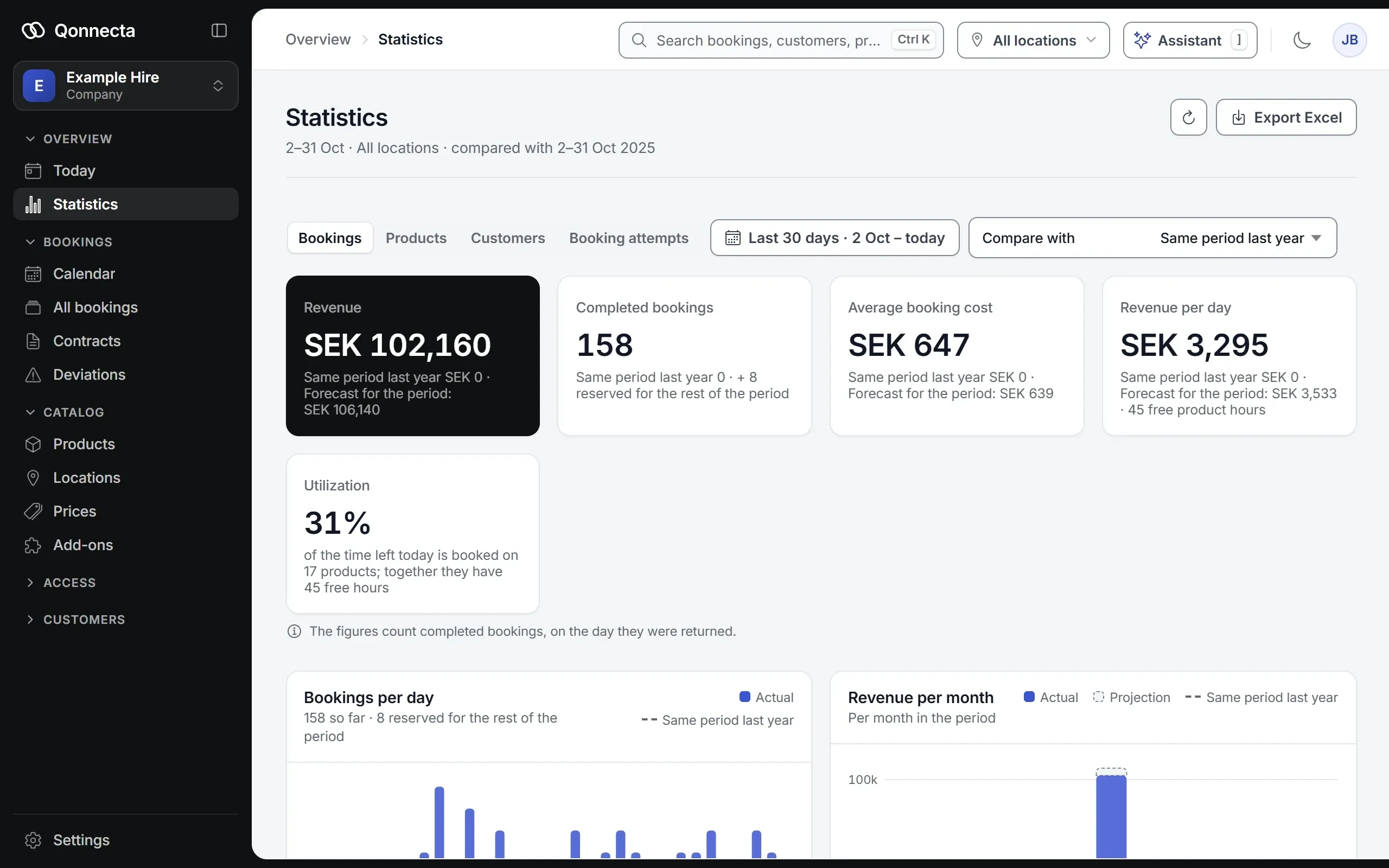
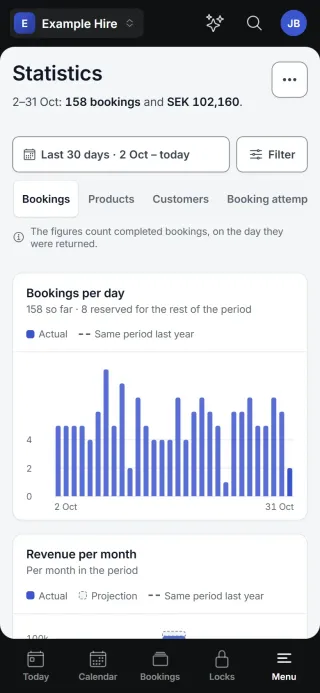
See how things are going when you log in
Today's pick-ups, returns and late returns gathered on one page. What needs you is at the top.
Revenue and idle days
See your revenue month by month, a forecast and how many days your products stand idle.
Export the figures to Excel when it is time for the year-end accounts. Qonnecta works with most business and accounting systems, and we help you connect them.
Get started today.
Create an account for free and set everything up yourself with the AI assistant, or let us do it for you, at no cost. Not happy? Your money back within 30 days.
Prefer to talk first? Book a walkthrough